Adobe Illustrator Logo Design: Complete Guide to Creating Vector Logos
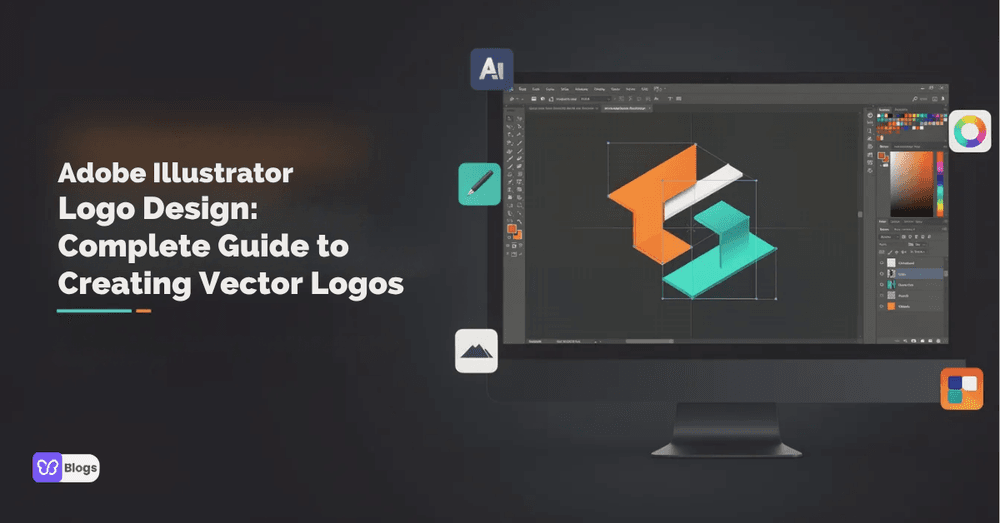
Adobe Illustrator remains the industry standard for logo design, and for good reason: vector graphics scale from a favicon to a billboard without losing sharpness. This guide walks through the complete adobe illustrator logo design process, from understanding the software and your brand to building, refining, and exporting a professional logo.
What is Adobe Illustrator and why it's perfect for logo design
Adobe Illustrator is a vector graphics editor, which means it draws with mathematical paths instead of pixels. That single property makes it ideal for logos: artwork stays crisp at any size, from business cards to storefront signage. Raster editors like Photoshop cannot guarantee that. Illustrator also offers precise type control, shape operations, and export formats every brand needs.
Logo work is inseparable from broader brand strategy. A mark only works if it fits the company's personality, market, and audience, which is why designers pair tool skills with branding fundamentals. Illustrator gives you the precision; strategy tells you what to aim at. These core features make Illustrator purpose-built for logo design workflows:
- Pen Tool: draw custom paths and Bézier curves for icons, custom letterforms, and refined vector shapes
- Shape Builder Tool: the Shape Builder tool allows combining and editing shapes easily, turning basic geometry into unique marks
- Pathfinder: unite, subtract, intersect, or trim shapes to construct complex forms
- Type tools: precise control over kerning, tracking, and custom lettering
Getting Adobe Illustrator: plans, pricing, and access
The single-app plan runs US$22.99 per month with an annual commitment and includes full desktop, iPad, and web access plus 100 GB of cloud storage. If you need more, Creative Cloud Pro bundles Illustrator with Photoshop, InDesign, and twenty-plus other apps. Adobe offers a 7-day free trial, so beginners can test the complete adobe illustrator logo design workflow, from sketch import to final export, before committing.
Understanding your brand before you create a logo
The first step is to understand your brand and audience. A logo does not emerge from tools; it emerges from strategy. Before opening a new document, define your industry, target audience, values, and personality. Write 5 to 10 brand adjectives, such as bold, minimalist, or friendly, to guide your font style, color palette, and basic shapes.
Then clarify which logo type fits. A wordmark uses the company name only, a lettermark condenses it to initials, a brand mark is a standalone symbol, and a combination lockup pairs symbol with text. Each suits different situations, and choosing early prevents directionless sketching later.
From sketch to vector: planning your Illustrator logo
Sketch 10 to 20 rough logo concepts before digital design. Use paper or a tablet, focusing on silhouette and composition rather than color or details. Rough thumbnails force you to experiment with form before committing pixels or paths, which is how you explore different styles and avoid generic results.
Scan or photograph your strongest sketch and place it into Illustrator on a locked reference layer. Lower the opacity and trace over it with vector tools. This bridges the speed of hand drawing with the precision of vectors, and keeps the organic character that pure screen-drawing often loses.
Step-by-step: how to create a logo in Adobe Illustrator
This is the core practical section. Each step below walks through a complete logo design workflow focused on vector graphics, so your logo scales from social icons to billboards without losing quality.
- Step 1: Set up your logo project: create a 1000px by 1000px artboard at 300 DPI in RGB, turn on rulers, grids, and smart guides, and place your sketch on a locked reference layer
- Step 2: Build with basic shapes: construct the mark from circles, squares, and polygons before adding detail
- Step 3: Refine curves and details: use the Pen Tool and direct selection to clean anchor points and smooth Béziers
- Step 4: Add and customize typography: choose a fitting typeface, adjust kerning and tracking, and convert text to outlines
- Step 5: Apply color and test variations: try limited palettes, then check the mark in black and white before committing to color
- Step 6: Create logo variations and lockups: produce horizontal, stacked, and icon-only versions for every placement
- Step 7: Export with transparent background: save the formats your brand will actually use, keeping the master AI file backed up
Export formats at a glance
- PNG: Web, presentations, transparent background
- SVG: Responsive websites, digital interfaces
- PDF/EPS: Print vendors, packaging, merchandise, posters
- AI: Master vector file - always keep backed up
Using Adobe Express for fast AI-powered logo ideas
Adobe Express helps you generate logo ideas quickly by typing a prompt and getting visual concepts in seconds. It is ideal for brainstorming, or for non-designers who want a starting point for a new logo. Rebuild the strongest concepts in Illustrator as clean vector shapes for production-ready results. Express also creates quick mockups for social media, website headers, and branded videos once your core logo is ready. Treat it as the idea engine and Illustrator as the finishing tool: together they cover both speed and quality.
Advanced Illustrator techniques for professional logo designers
- Use construction grids, modular systems, and angle constraints of 30 and 45 degrees for ultra-precise logo illustrator work
- Leverage variable fonts to adjust weight, width, and optical size with precision
- Build reusable asset libraries of symbols, color themes, and style presets to speed up repeated projects
- Use the Appearance Panel to manage multiple strokes, fills, and effects without duplicating objects
- Learn keyboard shortcuts for the Pen, Shape Builder, and Pathfinder tools to dramatically increase speed
- Save global swatches and graphic styles so brand colors stay consistent across every deliverable
Best practices and checklist for exporting and using your Illustrator logo
Before rolling out your logo, run through this checklist:
- Logo scales cleanly from icon to billboard without losing quality
- Typography is legible at all sizes
- Full-color, black and white, and grayscale versions exist
- RGB and CMYK versions are saved
- File formats covered: AI, PDF, SVG, and PNG with transparent background
- No unnecessary anchor points or raster elements remain
- Stroke weights are consistent and expanded for export
- Type is outlined in final files so it renders identically everywhere
FAQ: Common questions about Adobe Illustrator logo design
A few questions come up from every designer starting with Illustrator. Here are the answers.

Author
Debutify
Debutify is the easiest way to launch and scale your eCommerce brand.