7 Best AI Tools to Unblur Images and Restore Old Photos (2026)

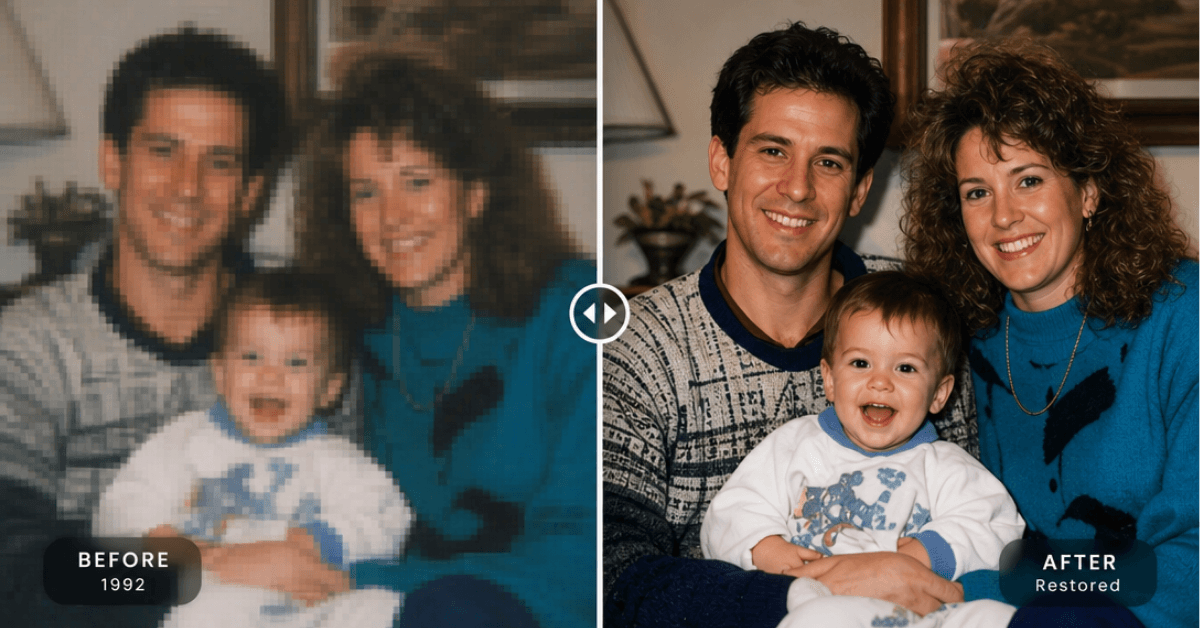
An old photograph often carries more than its paper can preserve. A grandparent’s face may still be visible, but softened by missed focus, dust, repeated scanning, or decades of fading. Retaking the picture is impossible, so restoration becomes an exercise in recovering what can still be seen without inventing too much. An AI tool built to unblur image files can improve outlines, facial definition, and overall clarity. The same technology is also useful for soft product shots, compressed social-media images, and photographs affected by minor camera movement.
Detailed Review of the Top 7 AI Tools to Unblur Image Files
1. BeautyPlus
BeautyPlus combines quick photo enhancement with practical cleanup features. Its dedicated unblur image tool handles out-of-focus shots through an automated upload-to-download workflow. For files with stock stamps, logos, or text overlays, a built-in watermark remover online free helps clear the background before users apply further sharpening.
Rather than requiring manual slider tweaks or technical model selection, the application automatically analyzes contrast and edge details. This straightforward approach fits portraits, travel photos, vintage prints, and basic ecommerce product listings. Users can also refine final outputs using the broader editing platform.
Pros:
Requires little editing experience
Works on browsers and mobile devices
Includes related portrait and cleanup features
Cons:
Geared toward quick web and mobile fixes rather than multi-layer Photoshop projects
2. Canva
Canva handles unblurring as part of a complete visual-design workflow rather than as a specialist restoration environment. A user can upload a soft photograph, apply image enhancement, and then adjust sharpness, clarity, contrast, or other visual properties. The corrected image can immediately be placed in a product card, advertisement, presentation, or social post.
This integrated approach is useful for ecommerce teams because it reduces the need to move files between separate programs. Canva performs best when the original has mild softness or compression rather than extreme motion blur. Its value lies as much in what happens after enhancement—resizing, arranging, adding text, and exporting—as in the correction itself.
Pros:
Combines enhancement and design in one workspace
Convenient presets for common publishing formats
Supports team-based content production
Cons:
Not designed for complex photographic restoration
Some AI and export features depend on the subscription tier
3. Picsart
Picsart uses its AI Enhance system to improve sharpness, resolution, and visible detail in a single process. Users upload a blurry photograph and receive an automatically enhanced version, which can then be opened in Picsart’s wider editor. From there, they can retouch a portrait, remove a background, apply effects, or prepare the image for a social platform.
The tool is especially practical for phone photography and pictures that have lost clarity through resizing or online compression. It can produce a stronger visual change than a basic sharpening slider, although that strength requires inspection. Hair, eyelashes, text, and highly patterned surfaces may acquire generated details that were not present in the source.
Pros:
Quick automatic enhancement
Extensive creative tools for further editing
Convenient mobile workflow
Cons:
Some functions and exports require paid access
Results can appear artificial when the source is extremely blurred
4. Topaz Labs
Topaz Labs takes a more technical approach than general-purpose design editors. Its AI technology is built to address several causes of poor image quality, including missed focus, camera shake, noise, and insufficient resolution. The online tool provides a convenient entry point, while the company’s desktop software offers a more controlled workflow for users who need to evaluate the result closely.
This distinction matters for professional photographs and high-value archival scans. Rather than applying uniform sharpening across the frame, Topaz tools can identify subjects and process image problems selectively. The added control also means users should compare settings carefully, since an aggressive model can produce crisp but inaccurate detail.
Pros:
Built specifically for image-quality correction
Strong controls in the desktop environment
Can combine sharpening, denoising, and upscaling
Cons:
Desktop products are relatively expensive
More complex than one-click browser tools
5. Pixelbin
Pixelbin provides a focused online unblur workflow without requiring an application download or a full editing project. Users upload an image, allow the AI system to process it, compare the enhanced output, and download the new file. The interface is therefore suitable for someone who needs to correct an occasional photograph without learning conventional editing software.
Its unblur tool is part of Pixelbin’s larger collection of AI image utilities and cloud-based transformation services. That broader infrastructure may interest ecommerce businesses that also need to optimize and deliver visual assets online. For individual users, however, the main attraction remains its speed and limited number of steps.
Pros:
Straightforward browser interface
No software installation required
Part of a broader image-optimization platform
Cons:
Few controls for adjusting enhancement strength
Free use may be subject to file or processing limits
6. Nero AI
Nero AI approaches unblurring through an online workshop where users upload an image and allow the system to generate a clearer version. The platform’s related upscaling and restoration functions are useful when blur is accompanied by low resolution, which is common with scanned prints, cropped photographs, and images saved from older websites.
Its automated design makes testing an old photograph relatively easy, even for users unfamiliar with restoration software. Nevertheless, upscaling and unblurring are different operations: enlarging an image creates additional pixels, while unblurring attempts to improve its apparent definition. Combining them can produce a cleaner result, but it can also amplify invented facial features or textures.
Pros:
Offers unblurring and upscaling within one toolkit
Accessible browser-based process
Useful for old and low-resolution photographs
Cons:
Repeated processing may consume credits
Generated details require careful checking
7. Fotor
Fotor integrates automatic unblurring into a general photo-editing platform. After uploading an image, users can apply AI enhancement and continue with exposure correction, color adjustments, portrait retouching, cropping, or design work. This makes the platform useful when a blurry photograph has several other problems that need attention.
The tool can handle portraits, old photographs, and everyday marketing visuals with mild or moderate softness. It favors an accessible, automated experience instead of the model selection and detailed masking available in professional restoration software. Severe motion streaks remain difficult, and users should monitor small text or facial details for unrealistic reconstruction.
Pros:
Broad editing toolkit across several platforms
Suitable for personal and commercial visuals
Simple process for users without technical experience
Cons:
Certain features and exports require a paid plan
Limited control over difficult blur patterns
Why You Need Image Unblur Tools
Saving One-of-a-Kind Photos: Some pictures simply can’t be retaken. Whether it’s an old family print, a blurry concert snapshot, or an event photo ruined by a shaky hand, an unblur tool brings back missing facial details and edges so you don't have to throw a good memory away.
Avoiding Costly Reshoots for Ecommerce: For online sellers, blurry product photos look unprofessional and cost sales. Instead of resetting up lighting and cameras just to fix a slightly soft shot, you can clean up package text, labels, and product textures in a few clicks.
Fixing Compression from Social Apps: Photos lose sharpness quickly when sent through messaging apps or downloaded from social media. AI enhancement helps crisp up those softened edges, making images look clean and ready to post again.
Keep in mind that these tools guess what missing details should look like rather than magic up the real thing. When fixing faces or small text, using a light hand works best so the image stays natural instead of looking fake or over-sharpened.
Practical Tips for Better Unblur Results
Unblurring works best as a controlled process rather than a one-click rescue. The following steps can help produce a clearer result without making the image look synthetic.
1. Diagnose the problem first
Soft focus, camera shake, low resolution, and compression are different defects. If the image is both noisy and blurry, reduce noise before applying strong sharpening. Otherwise, the tool may enhance grain and compression blocks along with the subject.
2. Prepare the cleanest possible source
Use the original camera file or a high-resolution scan instead of an image downloaded from social media. For printed photographs, remove dust from the surface and scan the image at 600 dpi or higher. A clean source gives the AI more reliable visual information.
3. Process important areas carefully
Faces, product labels, patterned fabrics, jewelry, and small text are prone to inaccurate AI reconstruction. When adjustable controls are available, apply stronger correction to the main subject and lighter treatment to delicate textures or backgrounds.
4. Judge the image at its intended size
An enhancement may look unnatural at 100% magnification but appear convincing on a product page or mobile screen. Review the file both close up and at its final display size before deciding whether another processing pass is necessary.
5. Watch for False Details
AI may create eyelashes, letters, skin texture, or fabric patterns that were not captured in the original. Compare both versions side by side, especially when image accuracy matters.
6. Save versions instead of overwriting
Keep the original and export enhanced copies separately. If possible, use PNG or a high-quality JPG to prevent additional compression from undoing the improvement.
Final Thoughts
Restoring blur is not simply a contest to produce the sharpest image. A successful result keeps the character of an old photograph—or the accuracy of a product shot—while making important details easier to see. AI has shortened a process that once required considerable editing skill, but judgment remains essential. When an enhanced face still looks like the person remembered, rather than a newly generated approximation, the software has done its most valuable work.

Author
Olivia Chris
Olivia Chris is a digital marketing and growth specialist with a focus on web optimization and creative tech. She helps brands and creators leverage modern AI tools to improve visual assets, online visibility, and workflow efficiency.