Shopify Theme ID Search: How to Tell What Shopify Theme a Store Is Using
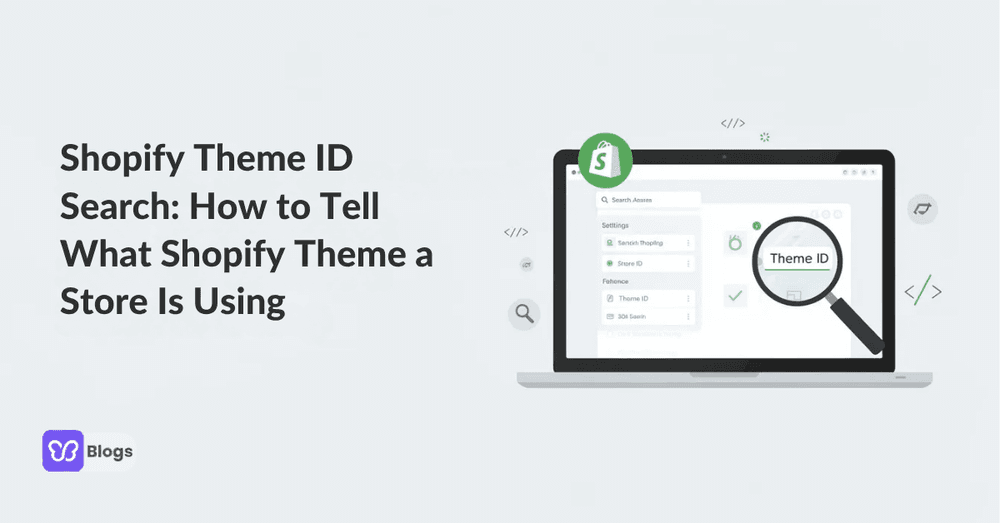
Ever landed on a competitor’s Shopify store and wondered exactly how they built that sleek, high-converting design? You’re not alone. Thousands of merchants, designers, and developers run a shopify theme id search every day to reverse-engineer successful storefronts. The good news: finding the exact theme behind any public Shopify site takes less than two minutes once you know where to look.
This guide walks you through every method—from inspecting source code manually to using automated detector tools—so you can identify themes, understand their IDs, and use that intelligence to make smarter decisions for your own online store.
Quick Answer: How to Find What Shopify Theme a Store Is Using (Step‑by‑Step)
The fastest way to answer “what shopify theme is being used?” is by checking the code of any public Shopify store or using a detector tool. Both methods work reliably on most storefronts and deliver instant results.
You have two main options:
- Manual inspection: Perform a shopify theme id search directly in the page source by viewing the HTML and searching for theme identifiers
- Automated tools: Use a shopify app theme detector or shopify template detector that scans the URL and returns theme details in seconds
Here’s the quick checklist to find shopify theme information:
- Open the target Shopify store in your browser
- Right-click anywhere and select “View Page Source” (or press Ctrl+U / Cmd+Option+U)
- Press Ctrl+F and search for “Shopify.theme” or “theme_store_id”
- Read the theme name and numeric ID from the results
- Optionally, verify with an online shopify theme detector for additional details
This works for most public, non-headless Shopify sites. The rest of this article goes deeper into IDs, manual versus automated detection, and advanced use cases like analyzing competitors’ themes and app stacks.
What Is a Shopify Theme & Theme ID? (Core Concepts)
A Shopify theme is the visual template that controls layout, design, colors, typography, and interactive elements of an online store built on the platform. Themes consist of Liquid templates, CSS, JavaScript, and assets that work together to create the storefront experience your customers see.
Every published theme in a store receives a unique numeric theme ID—a 10-14 digit integer generated when the theme is uploaded or published. Additionally, themes from the official Shopify Theme Store carry a theme_store_id, which is a universal ID for a theme sold on the official Shopify marketplace (typically a 3-4 digit number like 796 for Debut or 1078 for Dawn).
Why does this matter? These IDs help developers, agencies, and merchants match a live store to its original theme, even if someone renamed it or heavily customized the design. The theme ID is a unique number for a specific copy of a theme within a store, while the theme_store_id connects it to the canonical marketplace version.
- Knowing a theme ID makes it easier to search shopify theme by id in documentation, forums, or internal tools
- The theme ID is the numerical string at the very end of the URL when editing the theme in the Shopify Admin dashboard
- If the theme_store_id is null, the store is likely using a custom-built theme or one purchased from a third-party marketplace
Understanding the distinction between official themes, free shopify themes, premium themes, and fully custom themes that don’t exist in the public marketplace helps you interpret detection results accurately.
Method 1: How to Find Shopify Theme in Source Code (Manual Theme ID Search)
Manual inspection is the most reliable way to perform a precise shopify theme id search without third-party tools. It works on any browser and gives you direct access to the raw data Shopify embeds in every page.

Step-by-Step Process
For Chrome, Edge, or Firefox:
- Visit the target Shopify store URL
- Right-click anywhere on the page and select “View Page Source” (or press Ctrl+U on Windows, Cmd+Option+U on Mac)
- Press Ctrl+F (Cmd+F on Mac) to open the search box
- Search for these terms: Shopify.theme, theme_store_id, themeId, or theme_id
To find the theme ID by viewing the live store’s source code, search for “id”: or “theme_store_id”: to locate the numerical identifier. You’ll typically find JSON that looks like this:
Shopify.theme = {"name":"Dawn","id":32462209097,"theme_store_id":1078,"role":"main"};In this example:
- name shows the admin-labeled title (often customized, like “Dawn - Production”)
- id is the instance-specific theme ID unique to that store
- theme_store_id links to the original theme in the marketplace
Real-world example: If you find theme_store_id: 796 in the store’s source code, you’ve identified Debut—a free theme that powered over 500,000 stores before Dawn superseded it in 2022. Finding theme_store_id: 855 reveals Prestige, a premium theme popular among luxury brands.
This technique answers how to find shopify theme in source code and works on any public page of the Shopify site—homepage, collection pages, or product pages. The data appears because Shopify injects a global Shopify.theme object into the page DOM for analytics and theme editor functionality.
The advantage here is zero dependencies and near-100% accuracy for non-headless sites. The trade-off is manual effort compared to automated tools.
Method 2: Using Shopify Theme Detectors & App Detector Tools
Automated detectors answer “how to tell what theme a shopify store is using“ in seconds by scanning HTML and Liquid patterns. These tools eliminate the manual work and often provide additional context like pricing, marketplace links, and detected apps.
A Shopify theme detector is a tool that identifies which theme any Shopify store is using by analyzing the store’s source code. Here’s how a typical shopify template detector works:
- User pastes the store URL into the tool
- Tool fetches and parses the HTML remotely
- Matches code patterns against a database of official, third-party, and custom theme signatures
- Returns the theme name, ID (when available), and sometimes a direct link to purchase
To use a Shopify theme detector, users typically need to paste the store URL into the tool, which then scans the source code for theme signatures and provides the theme name and link.
App Detection Capabilities
Some detectors function as a shopify app theme detector, revealing not just the theme but also installed apps like review widgets, upsell tools, and subscription services. This matters because merchants often want to know how to tell what shopify theme a store is using plus which apps support its design and conversion strategy.
Tools and browser extensions like Shopify Theme Detector or Koala Inspector can help identify themes and their IDs. The fera.ai shopify app detector and similar solutions scan for script signatures like klaviyo.js for email marketing or judge.me for reviews, revealing the complete technology stack.
Quick Tutorial
Here’s how to use any detector in three simple steps:
- Copy the target store’s URL from your browser
- Paste it into the detector’s search field
- Read the results: theme name, ID, price, and whether it’s from the Theme Store or a private build
Limitations to know: Shopify theme detectors can reveal whether a theme is a known commercial theme or a custom-built theme, which helps users understand the design choices of successful stores. However, detectors may show “Unknown” or “Custom” when the store uses heavily modified code, a bespoke custom theme, or a headless frontend built with Hydrogen or similar frameworks.
How to Interpret Your Theme Detection Results (Free, Premium, Custom)
Once you find shopify theme details, you need to interpret what that information means for your own Shopify store strategy. The results typically fall into three categories.
Official Theme from the Shopify Theme Store
When the detector shows a clear name like Dawn, Impulse, or Prestige with a matching theme_store_id, you’ve found an official marketplace theme. Dawn is Shopify’s free flagship theme, known for its minimal and fast design, making it suitable for a variety of stores.
Key stats to consider:
- 52% of all Shopify stores use free themes, with Dawn being the most popular, powering nearly 25% of detected stores in 2026
- Premium themes like Impulse and Prestige dominate the paid segment, with Impulse capturing 27% of the premium market share and Prestige capturing 20%
- Stores using premium themes earn 2.4 times more per visitor than those on free themes
Customized Official Theme
Sometimes the detector shows a base theme name, but the live design looks significantly different. This indicates heavy customization with custom code, apps, or section modifications. The good news: you can still install the base version and replicate the layout using sections and app integrations.
Custom or Unknown Theme
“Custom” or “Unknown” results usually indicate a bespoke custom theme built by developers—not downloadable from the theme store. This is common for older, high-revenue Shopify stores or brands with specific design requirements. If the theme_store_id is null, the store is likely using a custom-built theme or one purchased from a third-party marketplace.
Next steps based on results:
- For official themes: Install and test free themes first, then evaluate whether premium themes justify the investment
- For customized themes: Focus on the base template and plan similar modifications
- For custom builds: Analyze layout and features rather than trying to copy the exact template
This process answers both “how to know the theme of a shopify store“ and the bigger question: should you buy, customize, or commission a theme of your own?
Building a Theme ID Reference: Lists, Tables & Real‑World IDs
Frequent auditors, agencies, and developers maintain a list or spreadsheet mapping known theme IDs to names. This speeds up any future shopify theme id search and eliminates repetitive lookups.
Here’s an example reference table with popular shopify themes:
| Theme Name | theme_store_id | Type |
|---|---|---|
| Dawn | 1078 | Free |
| Debut | 796 | Free (Legacy) |
| Impulse | 857 | Premium |
| Prestige | 855 | Premium |
| Palo Alto | 777 | Premium |
| Galleria | 851 | Premium |
| Craft | 1200+ | Free |
| Heritage | 3624 | Premium (2025) |
Public resources sometimes list IDs with update dates (e.g., “verified June 2025”), but not every theme or custom theme will appear in community-maintained lists. Newer releases get added as they launch—approximately 50 new IDs enter the ecosystem each year.
How to use a reference list:
- Run manual source inspection on the target store
- Copy the theme_store_id number from the code
- Match it against your table to see which exact theme the Shopify store is using
If you run multiple Shopify stores or client projects, maintain your own internal sheet of IDs for the themes you encounter most often. This answers edge-case questions like “what theme is ID 37681430599?” without re-running detectors each time.
Advanced Use Cases: Competitor Research & Conversion Optimization
Knowing how to tell what theme a shopify store is using is a powerful competitive intelligence tool, not just a curiosity. Strategic merchants use this information to inform their own design and technology decisions.
Competitor Theme Audits
Audit 10-20 competitor Shopify sites to see whether they rely on free shopify themes, mid-tier templates, or expensive custom themes. This reveals budget signals—stores on free themes often generate under $10k monthly, while premium themes correlate with $10-100k revenue, and custom builds typically indicate $100k+ operations.
Combining Theme and App Detection
The real power comes from pairing theme detection with an app detector. Tools like the fera.ai shopify app detector help reconstruct more of the conversion funnel: trust badges, reviews, upsells, subscriptions, and more.
Themes that effectively display trust signals, such as reviews and badges, can increase conversion rates by 15-30%. When you identify both the theme and the apps powering those trust elements, you can replicate the entire conversion strategy.
Briefing Designers and Developers
Use detection results to communicate precisely with your team:
“I want this store’s product page layout but using a similar custom theme built on a modern base like Dawn. They’re using Prestige with heavy modifications—let’s start there.”
Agencies and freelancers incorporate theme ID and app stack data into SEO and conversion optimization audits, supporting recommendations with concrete examples from real Shopify stores rather than generic best practices.
Troubleshooting: When Theme Detection & Theme ID Search Don’t Work
Sometimes the answer to “what shopify theme is being used?” isn’t straightforward because of technical limitations. Here’s what to do when standard methods fail.
Common Reasons for Detection Failure
- Not actually Shopify: The site mimics Shopify styling but runs on WooCommerce or another platform
- Password-protected storefronts: Development or staging stores block public access
- Headless builds: Hydrogen or React-based frontends don’t use traditional Liquid themes, so no theme ID exists
- Heavy obfuscation: Extremely modified code obscures original identifiers
- Bot protection: Security tools like Cloudflare or Sucuri block automated detectors
Troubleshooting Checklist
- Verify the site is actually on Shopify (check for myshopify.com in the URL or X-Shopify-Stage in headers)
- Confirm the store is publicly accessible (no password page)
- Double-check you’re using the correct URL (not a subdomain or landing page)
- Wait for full page load before viewing source
- Retry detection with a different tool or browser
In heavily customized cases, page source may only reveal generic hints like “Custom” or “Unknown,” and you cannot reliably search shopify theme by id because no public match exists.
Fallback options: Try another browser, use a different shopify app theme detector, or accept that the store runs a one-off custom theme and focus on copying layout patterns rather than the exact template.
Choosing Your Own Theme: Free, Premium, or Custom?
Learning how to tell what theme a shopify store is using should inform—not dictate—your own theme selection. The best choice depends on your specific situation, not what competitors happen to use.
When Free Themes Make Sense
Free themes like Dawn work well for new stores, validation phases, and limited budgets. They provide solid foundations with modern features. However, A 1-second delay in page load can reduce conversion rates by 7%, so ensure any theme you choose prioritizes speed—a good Shopify theme should prioritize speed, as a theme that loads in under two seconds can significantly outperform slower designs.
When to Upgrade to Premium
Premium themes justify their cost ($150-$400) when you need:
- Larger catalogs with advanced filtering
- Complex navigation structures
- Built-in conversion features like countdown timers or mega menus
- More section variety for brand storytelling
When Custom Development Makes Sense
Established brands with larger revenue or highly specific design requirements benefit from fully custom themes ($10k-$100k+ development costs). This path makes sense when off-the-shelf options simply can’t deliver your vision.
Key Considerations for Any Theme
When choosing a Shopify theme, consider your niche; a single-product store will require different features compared to a store with a large catalog of items. Mobile responsiveness is essential for Shopify themes, as over 70% of Shopify traffic comes from mobile devices, making it crucial for themes to perform well on various screen sizes.
Use your knowledge of competitor themes and IDs to shortlist 3-5 candidates, then test them with real content and analytics rather than copying blindly. Mastering shopify theme id search and detection techniques helps you make data-driven design decisions that improve user experience and revenue.

FAQ: Common Questions About Shopify Theme ID Search & Detection
1. How do I run a Shopify theme ID search on any store?
To find the theme ID of a Shopify store, you can use the URL in your admin dashboard or inspect the store’s live source code. For any public store, view page source (Ctrl+U) and search for “Shopify.theme” or “theme_store_id” to locate the numerical identifier.
2. How to tell what Shopify theme a store is using if the name was changed?
Even if someone renamed their theme in the admin (e.g., “Dawn - Summer 2026”), the underlying theme_store_id remains unchanged. Search the source code for theme_store_id rather than relying on the display name, then match that number against known theme ID lists.
3. Can I always search Shopify theme by ID in public databases?
Public databases cover approximately 80% of official and premium themes from the Shopify Theme Store. Custom themes and third-party marketplace themes may not have documented IDs, showing “null” or returning no matches.
4. How to know the theme of a Shopify store without using tools?
The manual page source method requires no tools at all. Right-click, view source, search for theme identifiers. This works in any modern browser and provides the same information that detector tools extract automatically.
5. What’s the difference between a Shopify template detector and a Shopify app theme detector?
A template detector focuses solely on identifying the theme. An app theme detector scans for both theme information and installed apps (review widgets, email tools, subscription services), giving you a fuller picture of the store’s technology stack.
6. Can tools like the fera.ai Shopify app detector see private store data?
No. These tools only analyze publicly visible elements—scripts, stylesheets, and HTML rendered to browsers. They cannot access admin settings, private customer data, or backend configurations.
7. Is copying another store’s theme allowed?
You can legally install the same theme from the theme store that another store uses. However, copying proprietary brand assets, custom code, images, or copyrighted content is not permitted. Purchase the base theme legitimately, then create your own customizations.
8. Why does detection sometimes show “Custom” when I know it’s a real theme?
Heavy modifications can obscure original theme signatures. If a developer removed identifying code, changed file structures significantly, or layered extensive custom code, detectors may not recognize the base template.
Now that you understand how to identify any Shopify theme through source code inspection or detection tools, put this knowledge to work. Start with one competitor audit today—view their source, note the theme and any visible apps, then decide whether that foundation fits your brand’s needs. Building this research habit transforms theme selection from guesswork into a data-driven decision that supports your store’s long-term success.

Author
Debutify
Debutify is the easiest way to launch and scale your eCommerce brand.