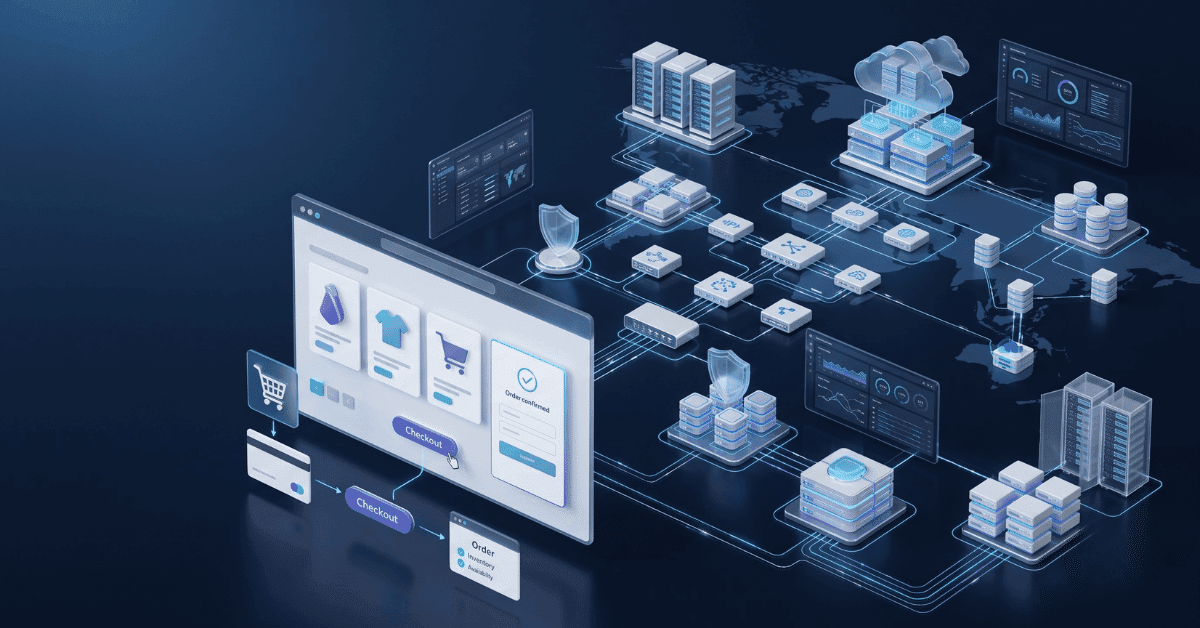
When Your Shopify Store Outgrows Spreadsheets How to Connect Shopify to an ERP (and What to Sync First)
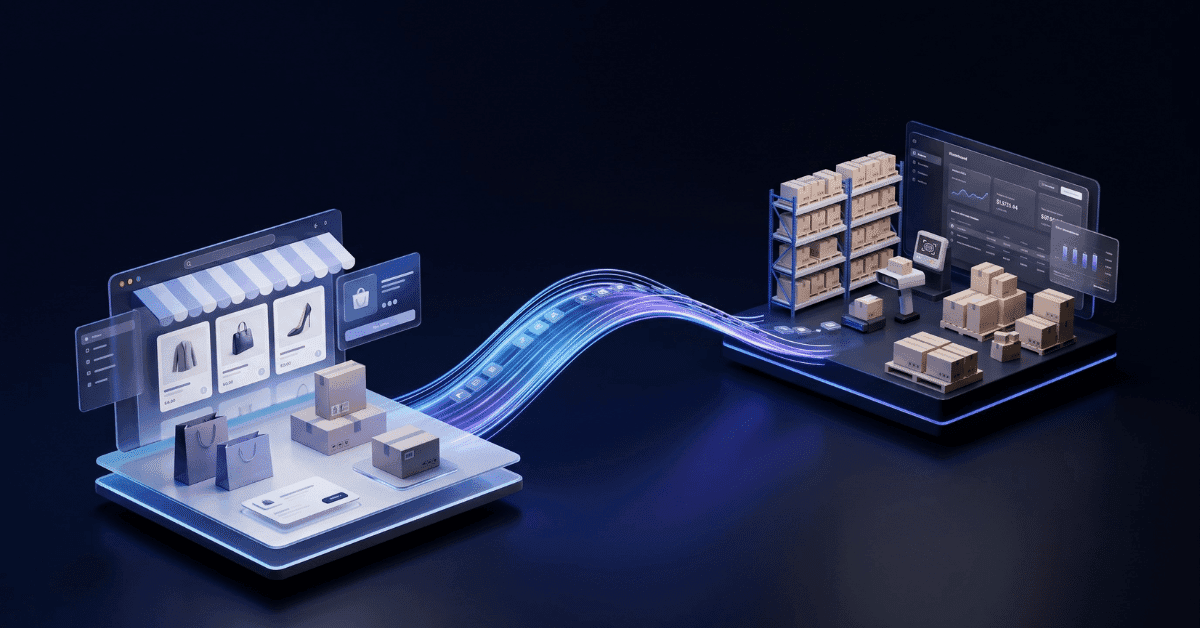
Spreadsheets are a great way to run a young Shopify store. They're flexible, free, and everyone on the team already knows how to use them. As the store grows, though, they quietly start slowing things down: stock counts drift, reorders depend on someone's memory, and closing the month takes days.
That's usually when an ERP (enterprise resource planning) system comes into the picture. This guide explains how to tell you're ready, how Shopify and an ERP share the work, and which data to sync first to keep your Shopify ERP integration simple and low-risk.
Signs Your Store Has Outgrown Spreadsheets
A few patterns show up in almost every store that's ready for the switch:
Overselling happens regularly. Stock updates lag behind sales, especially across several channels or locations.
Reordering depends on one person. Someone checks the sheet and emails the supplier. When they're on vacation, reorders stop.
Finance lives on exports. Orders, refunds, and payouts get downloaded and matched by hand every month.
Nobody agrees on the stock number. The warehouse sheet, the purchasing sheet, and Shopify all show slightly different numbers.
A new channel feels risky. Wholesale or a marketplace would mean yet another file to keep in sync.
If 3 or more sound familiar, your back office is probably holding growth back more than your storefront is.
How Shopify and an ERP Work Together
Connecting an ERP leaves the customer experience exactly as it is. Your theme, checkout, and apps for reviews, upsells, loyalty, and email keep running as before, and Shopify stays where customers browse and buy.
The ERP takes over the back office: inventory across locations, purchasing, supplier management, cost of goods, and accounting. A simple way to picture it: Shopify is the shop floor, the ERP is the stockroom and finance office behind it, and the integration is the door between them.
Decide Which System Owns Each Type of Data
Every piece of data needs one "home," a single system that's allowed to change it. When 2 systems can both edit the same field, you get conflicts that are hard to untangle later.
Here's an ownership map most stores can start from and adjust:
Data | System of record | Sync direction | Typical timing |
|---|---|---|---|
Product content (titles, descriptions, images, SEO fields) | Shopify | Shopify → ERP (SKU and basic fields only) | On change |
SKUs, costs, supplier details | ERP | ERP → Shopify (SKU, barcode) | On change |
Inventory levels | ERP | ERP → Shopify | Near real time |
Orders | Shopify | Shopify → ERP | Near real time, plus a scheduled check |
Fulfillment status and tracking | ERP or 3PL | ERP → Shopify | On shipment |
Refunds and returns | Shopify (where they start) | Shopify → ERP | On change |
Prices | Depends on setup | Usually ERP → Shopify for B2B price lists | Scheduled |
Customer details | Shopify | Shopify → ERP (order-related fields) | With each order |
The logic is intuitive. Product content stays in Shopify, where merchandising happens and your store apps read it. Stock lives in the ERP, because it's the only system that sees every channel and warehouse at once. Keep this table in a shared document and update it whenever a new field joins the sync.
What to Sync First
It's tempting to connect everything at once, but a phased rollout is much safer. You catch problems while they're small, and each phase delivers a visible win.
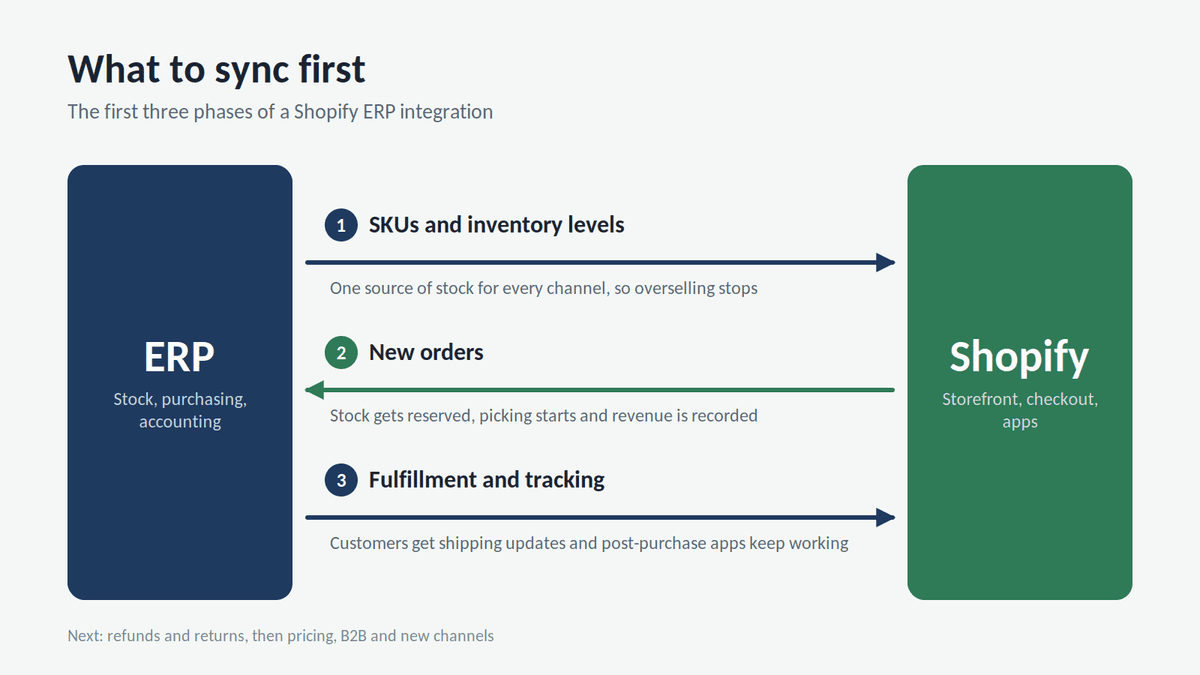
Here's how the first 3 phases flow between the systems:
Phase 1: Product Mapping and Inventory Sync
Start with the SKUs, since every other sync relies on them. A quick catalog audit usually turns up a few surprises: variants with no SKU, two products sharing one, or a "TEMP-001" left from an old import. Fix these before connecting anything.
Then turn on the inventory sync from the ERP to Shopify. Data flows one way, so the risk is low, and overselling usually drops off soon after.
Phase 2: Orders Into the ERP
Once stock is reliable, bring orders into the ERP. The ERP reserves the items, sends a pick request to the warehouse, and books the sale.
Send the full order, with discounts, shipping, taxes, and payment method. Otherwise, your accountant ends up rebuilding it from Shopify exports.
Phase 3: Fulfillment Back to Shopify
Then close the loop. When the warehouse ships an order, the ERP sends the fulfillment and tracking number back to Shopify. Shopify can then notify the customer, and post-purchase apps that react to shipping events keep working as usual.
Phase 4: Refunds, Returns and Accounting
Returns touch stock, revenue, and sometimes supplier credits all at once, so they're easier to add once the first three flows are stable. Map each refund type (full, partial, shipping-only, with or without restock) to a clear action in the ERP.
Phase 5: Pricing, B2B and New Channels
Finally, add customer-specific price lists, wholesale terms, and marketplaces. Since SKUs and orders already sync reliably, adding a new channel means reusing the same setup.
Choosing a Shopify ERP Integration Approach
Most stores connect the 2 systems in one of 3 ways:
A ready-made connector. Many ERPs offer a Shopify connector. It's the quickest to set up and works well when your processes match its assumptions.
An integration platform (iPaaS). Middleware tools let you build flows with prebuilt steps and visual field mapping, a nice middle ground when you need some flexibility.
A custom integration. Built directly on Shopify's Admin API and webhooks, it gives full control over mapping, error handling, and edge cases.
A good first step is to test the connector against your ownership table. If it handles your product types, locations, and refund cases, it's often the sensible choice. Custom work makes sense when workflows get unusual, like bundles assembled in the warehouse, several 3PLs, or an older ERP without a ready connector. In those situations, it's worth taking the time to hire ERP developers who have worked with both Shopify's API and ERP data models, because most integration bugs hide in the gaps between the two.
Whichever route you pick, check how it handles failures. A solid integration logs every failed sync, retries safely, and alerts a real person, so a stuck order gets noticed within minutes.
Technical Details That Trip Stores Up
Most integration headaches come from the same few places:
Webhooks that repeat or arrive late. Shopify sometimes sends the same event twice, or out of order. Before creating an order in the ERP, check that it isn't already there.
Missed events. Now and then a webhook never arrives at all. Shopify suggests running a regular job that pulls recent changes and fills the gaps.
API rate limits. Shopify caps how many requests an app can send in a given period. For big catalog updates, use bulk operations or a queue.
Bundles. A bundle may be one item in Shopify and several separate components in the ERP. Agree early on where bundles live.
Multiple locations. Match each Shopify location to an ERP warehouse and choose which ones ship online orders.
Currencies. In multi-currency stores, decide which currency the ERP records: the store's, the customer's, or both.
Stock buffers. Some stores show slightly less stock online than they have, to allow for damaged items or goods in transit.
A Practical Rollout Checklist
When you're ready to go live, this sequence keeps surprises to a minimum:
Clean up SKUs and barcodes across the whole catalog.
Write the ownership table and get sign-off from operations, finance, and marketing.
Test everything in a Shopify development store with a copy of real products.
Run the spreadsheets and the integration side by side for a week or two, comparing stock and orders daily.
Launch during a quieter period, well away from big sales events.
Set up alerts for failed syncs and a daily stock reconciliation report.
Wrapping Up
Moving from spreadsheets to an ERP is mostly a back-office upgrade. Shopify, your theme, and your apps keep serving customers, while the ERP gives operations and finance one reliable picture of stock, orders, and costs.
Start with clear data ownership, clean SKUs, and a one-way inventory sync. Then add orders, fulfillment, and returns one step at a time. Each phase removes another manual task, and by the time you're ready for a new sales channel, the hard part is already done.

Author
Debutify
Debutify is the easiest way to launch and scale your eCommerce brand.