Building a Website on Shopify: Step‑by‑Step Guide to Launch Your Online Store
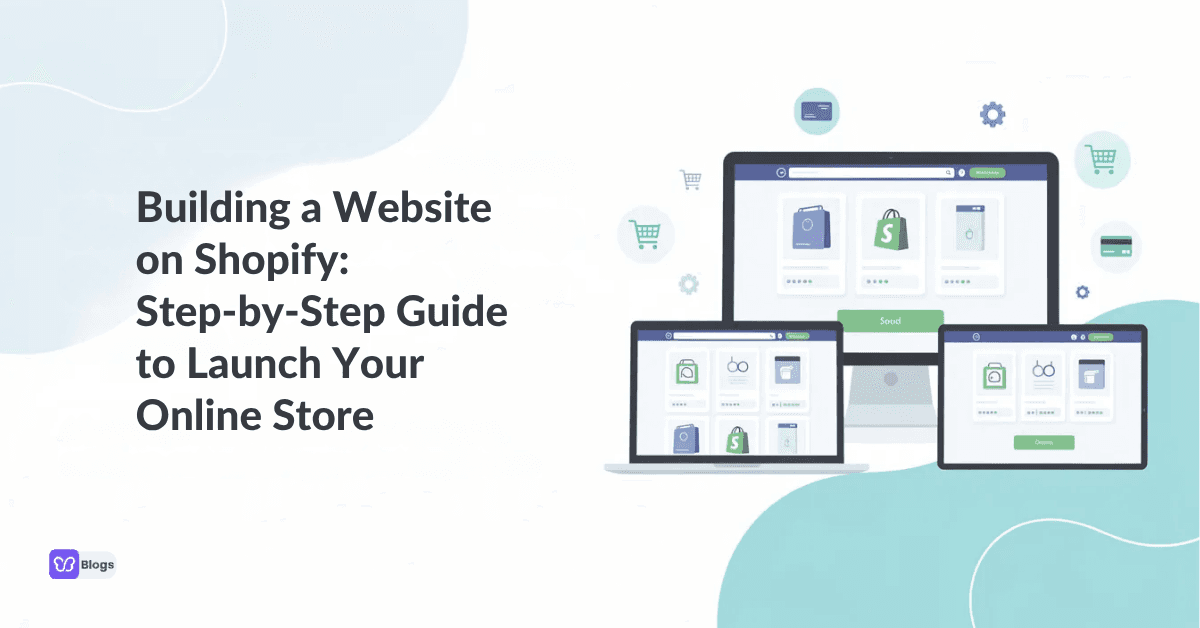
Wondering how to build a website on Shopify? The short answer: sign up for a free trial, pick a theme, add your products, configure payments, and launch. Shopify handles hosting, security, and updates so you can focus on selling. Whether you're creating a website on Shopify for physical goods, digital downloads, or services, the process follows the same clear path. This guide walks you through every step of building a website on Shopify, from account creation to your first live sale.
1. Why Build a Shopify Website for Your Online Business?
Shopify is a hosted ecommerce platform that abstracts away server maintenance, plugin compatibility, and security patches. When you how to make a Shopify website, you work from a web-based admin dashboard instead of wrangling infrastructure. Shopify provides tools for website creation, payments, inventory, and marketing, all under one roof. It also includes built-in analytics and reporting tools, 24/7 customer support, and fast, reliable web hosting on every plan.
You can use Shopify for a full ecommerce website or a content-driven own website that adds products later. It offers a drag-and-drop store builder designed for non-developers and beginners, which means you can build a Shopify store from scratch in a weekend. Shopify allows businesses to manage multiple sales channels from one dashboard, so as you grow, the platform scales with you.
Compared to WordPress with WooCommerce, Shopify eliminates the need to find hosting, install security plugins, and manually update software. Wix is simpler but lacks the depth of Shopify's ecommerce features. If your goal is a reliable online store with room to grow, how to make a website with Shopify is one of the most straightforward paths available.
2. Create Your Shopify Account and Start Your Free Trial
The shopify store create process begins at Shopify.com. Here is what to expect:
Click "Start free trial." Shopify offers a three-day free trial for new users, no credit card required.
Enter your email, create a password, and choose a store name. Shopify asks a few quick questions about what you plan to sell and your experience level.
After the trial, new users can get a promotional rate of $1/month for three months before moving to a standard plan. Shopify plans start at $39 per month for the Basic tier.
This is the same starting point whether you plan to build a Shopify store for physical products, services, or digital items.
Your storefront stays password-protected during setup, so you can build privately and remove the password only when you are ready to launch.
Use the trial period to set up your entire store design, products, and pages. You do not need a paid plan to start the building process.
3. Define Your Store's Purpose, Audience, and Structure
Before touching any theme, decide what your online store actually needs to accomplish. This planning step saves hours of rework later.
Decide whether your store is B2C, B2B, or hybrid. Set concrete 90-day goals: number of orders, email subscribers, or leads.
Map out 5–10 core pages. A homepage communicates your brand and services. Product pages provide details like stock levels and reviews. A contact page allows customers to reach out with questions. An FAQ page answers common questions to reduce support load. An About page helps build trust and connect with visitors. Policy pages are necessary for legal compliance in ecommerce.
Sketch your collections and navigation hierarchy in a spreadsheet or on a whiteboard before opening the editor. A clear sitemap makes the building process faster and helps search engines index your site properly, so customers find you more easily.
4. Choose a Theme: Free vs Paid Themes and Overall Layout
Your Shopify theme controls every visual element of your store. Shopify offers over 100 customizable themes, and many are optimized for specific industries. To browse them, go to Online Store > Themes in the Shopify admin dashboard.
Explore free themes like Dawn or Sense if you are testing ideas or on a tight budget. Free themes average PageSpeed scores of 60–67, which is solid for both user experience and SEO.
Paid themes (typically $140–$180) offer features like mega-menus, advanced filtering, and lookbooks. However, they can average lower speed scores around 54 due to heavier code.
Shopify themes are mobile-responsive and designed for various industries. You can preview themes before applying them to your store, and some themes include multiple layout options for customization.
Shopify themes can be free or paid, depending on features needed. Shopify also offers AI-assisted setup tools for faster customization, including personalized theme generation.
Themes are drag and drop friendly and can still be made completely custom later with sections, apps, and code edits.
Pick a theme that already looks close to your desired layout rather than planning to redesign it from scratch.
5. Customize Your Shopify Website with the Drag‑and‑Drop Editor
Open Online Store > Themes > Customize to enter the visual editor. Shopify offers a drag-and-drop store builder that lets you rearrange sections without writing code.
Start with the header: upload your logo, set up main navigation, and add a favicon. Match colors and typography to your brand identity or the new online business look you want.
Edit the homepage by adding and reordering sections: hero banners, featured collections, testimonials, videos, and blog post previews.
You can add pages to your Shopify website from the Pages tab in the Shopify admin. Use this to create custom pages like About, Contact, FAQs, and Shipping info.
Even without code, you can achieve a completely custom look by combining sections, imagery, and copy. The editor supports flexible options for arranging every element on screen.
Resist the urge to over-design. Aim for a clean, conversion-focused layout you can refine after launch based on real user data.
6. Add Products, Collections, and Essential Product Pages
Strong product pages are the engine of any ecommerce business. Set them up methodically:
You can add products from the Products tab in Shopify. Each product requires a title, description, and price. Fill in inventory quantities, shipping weight, and variants like size or color.
Use high-quality product photos taken from multiple angles. Include sizing information, trust badges, and clear product descriptions that emphasize benefits over features.
Organize products into collections for easier navigation. You can group them manually or use Shopify's automatic product collection based on conditions like tags, price range, or inventory status. Examples: "Best Sellers," "New Arrivals," "Sale."
You can add digital products and services to Shopify alongside physical goods.
For on-page SEO, edit the meta title, meta description, and URL handle on each product and collection page. Good product data also powers search filters, upsells, and remarketing later on.
7. Set Up Payments, Shipping, and Taxes So You Can Get Paid
Your site is not functional until checkout works. To set up payments, go to Shopify admin and click Settings.
Payments:
Activate Shopify Payments to allow credit card acceptance without third-party apps. Activating Shopify Payments incurs no extra transaction fees.
Shopify integrates with over 100 secure payment gateways if you need a specific third party provider.
Shopify supports express pay options like Google Pay and PayPal. The Shopify App Store has over 8,000 add-ons available for further payment integration enhancements.
Shopify includes built-in payment processing for all plans, plus built-in inventory and order management features.
Shipping:
Set up free shipping over a threshold (e.g., free over $75), flat-rate domestic shipping, or carrier-calculated international rates.
Configure whether shipping is taxable in your region.
Taxes:
Enable automatic tax calculation for your country and state. U.S. merchants can use Shopify's built-in tax engine; EU and UK stores can set prices to include VAT.
Always verify settings with a local accountant for compliance.
8. Connect Your Own Domain and Launch a Professional Brand
A custom domain builds trust and helps customers find your store. Most domains cost around $30 per year.
You can register a domain through Shopify's admin dashboard, or connect an existing one from a registrar like Namecheap or GoDaddy.
Set your custom domain as the primary domain so visitors see www.yourbrand.com instead of yourbrand.myshopify.com. Shopify provides free SSL certificates on all domains.
Set up branded email forwarding so order notifications come from something like Email rather than a generic address.
A custom domain supports long-term brand identity and delivers better click-through rates from search and social traffic.
9. Optimize Your Shopify Store for SEO, Speed, and Marketing
Launching is only the beginning. Ongoing optimization is what separates stores that grow from those that stall.
SEO: Add relevant keywords naturally into headings, copy, and blog posts. Customize meta titles and descriptions on every page. A clear site structure helps you rank higher on search engines so customers find your products.
Speed: Compress images, limit heavy third party apps, and stick with fast themes. Pages with load times over four seconds see roughly 22% lower conversion rates. Shopify provides web performance reports in the admin to monitor Core Web Vitals.
Analytics: Enable Shopify Analytics and connect Google Analytics to track traffic, conversion rates, and sales patterns. Shopify provides built-in analytics and reporting tools on every plan.
Marketing: Shopify Email includes 10,000 free emails each month for marketing emails, welcome flows, and abandoned-cart recovery. Shopify supports SMS marketing through third-party apps. Pick one or two traffic channels to start, like Google Shopping or Instagram. Shopify allows integration with social media and external sales channels.
Apps: Shopify has an extensive app ecosystem for added functionality. The Shopify App Store has over 8,000 add-ons for reviews, upsells, SEO tools, and more. Add only what you need to avoid app bloat that drags down speed.
Shopify is designed for businesses of all sizes to scale their operations, so you can layer in complexity as revenue grows.
10. Test, Launch, and Improve Your Shopify Website
Before you flip the switch, run through this checklist:
Place at least one full test order using a live low-price product or test payment mode. Verify cart, shipping calculations, tax, and email notifications.
Check the store on mobile, tablet, and desktop. Ensure all buttons work, images load, and the layout looks clean on every screen.
Review navigation, footer links, and policy pages one final time.
Remove the storefront password from Online Store > Preferences to go live.
After launch, commit to a 30–60 day cycle of improvement. Study your analytics, refine product pages, test different offers, and adjust navigation based on how real customers behave.
By following these steps, anyone can how to build a Shopify store from scratch, going from shopify store create to a fully functioning online store ready to start selling and scale.
FAQ: Common Questions About Building a Website on Shopify
Is Shopify good for building a website without selling yet?
Yes. You can set up a Shopify website as a content site or blog first, with pages, an About section, and posts. Add products whenever you are ready. Shopify lets you use the platform for hands on experience without needing to spend money on inventory upfront.
How much does it cost to build a Shopify site?
A cost effective starter setup includes the Basic plan ($39/month after the promotional period), a domain (~$30/year), and a free theme. Paid themes run $140–$180 if needed. Apps add recurring fees, so install only what moves the needle. Compared to other platforms requiring separate hosting, SSL, and security plugins, Shopify is a user friendly and cost effective option.
Can I migrate from another platform?
Absolutely. Export products, customers, and pages via CSV and import them into Shopify. Use URL redirects (up to 100,000 on standard plans) to preserve your SEO so existing traffic does not hit dead pages. Test with a small batch first.
How long does it take to build a Shopify store?
For a basic store with a small catalog and a default theme, expect one to three days. Complex catalogs with hundreds of SKUs, custom pages, and advanced templates can take several weeks. Creating a website on Shopify is fast, but thorough product content and photography are usually what take the most time.
Do I need web development skills?
No. Shopify is suitable for non-developers and beginners. The drag and drop builder, pre-built templates, and the Shopify admin dashboard handle the heavy lifting. If you want a completely custom design later, you can hire a developer or use Shopify's Liquid code, but it is not required to launch and start selling.

Author
Debutify
Debutify is the easiest way to launch and scale your eCommerce brand.