Web Shopify: How to Design a High‑Converting Shopify Site in 2026
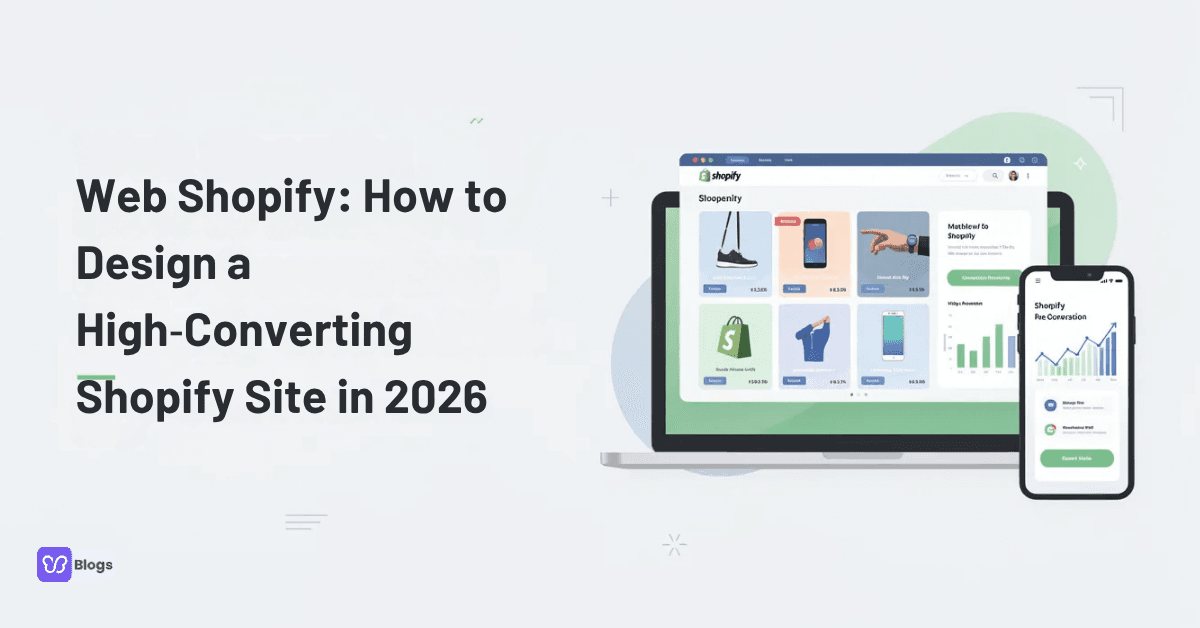
Web Shopify refers to building and designing a modern ecommerce website on Shopify-a cloud-based e commerce platform that provides an all-in-one e-commerce system including hosting, customizable templates, and built-in payment processing. Whether you're launching your first shop or redesigning an existing store, this guide covers how to design a Shopify website from strategy to launch.
Here's what you'll walk away with:
A clear process for planning your Shopify store design, including layout, branding, and performance optimization
How to choose the right theme from the Shopify theme store and customize it using drag and drop tools-no coding required
Practical UX tactics for product pages, checkout, and policy pages that reduce friction and increase sales
When to go beyond defaults with CSS, custom code, or hiring a developer
Shopify allows users to create and manage online stores without coding skills, but advanced users can still dig into the code for total control. Let's break it down step by step.
Step 1: Plan Your Shopify Store Design Before You Touch the Theme Editor
Successful Shopify store design starts with strategy, not pixels. Before you open any editor, decide what matters most for your business: conversion rate, average order value, email signups, or international expansion. These goals will shape every design decision you make for your online store.
Define your target customers and map their buying journeys. Are they browsing on mobile during a commute? Comparing prices across other channels? Buying in bulk for a business? Your answers determine layout priorities and the features you'll need. Shopify can support various types of products including physical, digital, and subscriptions, so document which product types you'll sell early on.
Shopify allows users to connect and launch a store quickly while managing orders from a single dashboard, and it enables synchronizing inventory across multiple sales channels. It also allows for seamless online and in-person sales integration through Shopify POS. With that foundation in mind, map out your must-have pages:
Homepage with clear value proposition
Product pages with detailed descriptions and images
Collection pages with filtering and sorting
About and Contact pages
FAQ page
Shipping and return policies (visible and easy to find)
Document required functionality-subscriptions, bundles, B2B pricing-before you start browsing Shopify themes. This prevents expensive redesigns later.
Step 2: Create a Brand Style Guide for Your Shopify Website
Consistent branding is the backbone of effective website design Shopify merchants often overlook. When your brand identity is clear and cohesive, customers trust you faster and remember you longer. Shopify includes a library of customizable design templates, but the templates only work well when you feed them intentional brand inputs.
Build a simple style guide covering:
Color palette: Choose primary, secondary, and accent colors. High-contrast color palettes improve legibility and accessibility-aim for at least 4.5:1 contrast ratio on body text, which aligns with current design trends and WCAG standards.
Typography: Pick 1–2 typefaces. One for headings, one for body. Keep it readable across devices.
Logo usage: A logo is crucial for brand recognition. Use scalable formats like SVG and define placement rules for your homepage and all pages.
Button styles: Your "Add to Cart" button needs a distinct accent color, clear padding, and hover feedback. This is a visual element that directly affects purchase behavior.
Imagery style: Will you use lifestyle photography, clean studio shots, or a mix? Document it. Plan for videos and interactive media where they add value.
Voice and marketing copy tone: Educational, playful, luxury, or direct? Keep it consistent across product descriptions, landing page headlines, FAQ answers, and policy pages.
Step 3: Choose the Right Shopify Theme From the Theme Store
A theme determines how a Shopify store looks and functions-think of choosing a theme as picking an architectural style for your store. It controls layout, typography, templates, and many of all the features shoppers interact with when browsing your site.
Browse the Shopify theme store and filter by industry, catalog size, and specific features like quick view, sticky cart, variant swatches, and product filters. Most themes support over 200 products, so catalog size is rarely a limiting factor.
Here's how to decide between free, premium, and custom:
Free themes like Dawn and Horizon dominate among new Shopify stores. Dawn is a free Shopify theme with excellent mobile performance-it currently powers roughly 15% of all stores. Horizon, released in 2025, has climbed to about 6–7% share and is the fastest-growing theme among merchants.
Premium themes (Prestige, Impulse, Broadcast, and others) offer advanced filtering, editorial layouts, animation, and built-in promotional tools. Shopify themes can cost up to $450 each, but the investment often pays off for stores with larger catalogs or specific design needs.
Custom themes provide total flexibility for brand identity but require ongoing developer support and maintenance.
Before committing, test demo stores on real mobile devices. Performance on a phone matters far more than how a theme looks on your laptop. Match theme style-minimalist, playful, editorial-to your brand when you design Shopify store layouts. Look at Shopify website examples in your niche for ideas and inspiration on different designs.
Step 4: Designing Your Shopify Site With the Drag‑and‑Drop Editor
Designing for Shopify using the built-in drag and drop visual editor requires zero coding. The website builder lets you add, rearrange, and customize sections and blocks visually. About 65% of Shopify stores now run OS 2.0 themes, which allow flexible sections on every single page-not just the homepage.
Structure your key pages like this:
Homepage: Hero banner with bold imagery, featured collections, bestsellers, social proof (reviews and testimonials), and a newsletter signup. This landing page is your storefront window-make it count.
Product pages: Include galleries with at least 3–5 images (or more), variant selectors for size and color, clear pricing, stock info, and trust elements like review stars and shipping details. Product filters improve usability and help customers find items quickly. A prominent "Add to Cart" button enhances user navigation-make it impossible to miss.
Navigation: Set up consistent header and footer menus so every Shopify site page feels intuitive. Shoppers should never wonder where they are.
Core web vitals measure loading speed, interactivity, and visual stability-keep an eye on LCP, CLS, and INP as you build. Use section presets to design Shopify site layouts quickly, then refine spacing, white space, and visual hierarchy. This is the core of Shopify web design for beginners and professionals alike.
UX Essentials: Product Pages, Returns, and Friction‑Free Shopping
UX decisions on product pages and policy pages directly affect whether shoppers purchase or bounce. Research from Baymard Institute shows only about 49% of leading ecommerce sites achieve "decent" or "good" UX on their product detail pages-the rest are mediocre or worse. Here's how to stand out:
Use 3–7 high quality images per product, including zoom and video where relevant. High-quality product images increase customer confidence in purchases.
Write concise product descriptions with scannable bullets, not dense paragraphs. Include specs, materials, and sizing information.
Place return policies links near the "Add to Cart" button or in an FAQ tab. Visible shipping and return information builds trust and reduces cart abandonment.
Add reviews, FAQs, and size guides directly on the product page. Layouts that hide details behind tabs perform worse than transparent, visible information.
Mobile-friendly stores are essential for a pleasant shopping experience. Test every element on real phones-touch targets, font sizes, image loading, and navigation must all work flawlessly for shoppers on the go.
Keep marketing copy persuasive but not overwhelming. Use icons, short paragraphs, and visual elements to create a seamless experience that guides customers toward checkout.
Modern Web Shopify Design Trends to Use (Without Hurting Performance)
Integrating 2026 design trends into your Shopify web design should never come at the cost of speed. About 78% of Shopify stores now serve WebP images for faster loading, and median CLS has improved roughly 22% year-over-year. But JavaScript bloat has grown about 26% in two years as the average app count per store has risen to 7.8-so every trend you adopt needs to earn its place.
Immersive hero sections with bold imagery or short video loops grab attention. Optimize file sizes aggressively so they don't tank your performance.
Nature-inspired color palettes and subtle analog textures (film grain, warm nostalgic hues) add warmth to a clean, modern layout.
Generous white space and editorial-style grids let products breathe. "Slow browsing"-cleaner layouts with fewer distractions-is a major trend among the latest trends in web design.
Responsiveness is non-negotiable. Every ecommerce website must adapt beautifully to mobile, tablet, and desktop.
Accessibility matters: Ensure text contrast meets WCAG standards, add ALT text to all images, use readable fonts, and support keyboard navigation. This isn't just a trend-it's a legal and ethical requirement for your site.
Advanced Customization: From Theme Tweaks to Full Code Control
At some point, many merchants outgrow basic theme settings and want deeper Shopify store design control. When your brand demands something the default editor can't deliver, it's time to explore customization.
Light tweaks: Edit theme CSS for spacing, color overrides, or animation. Adjust Liquid sections and rearrange templates to create unique page layouts without a full rebuild.
Intermediate: Build custom sections and blocks, use metafields to add structured data (ingredients, specs, care instructions) without touching core theme code. This is ideal for a professional store with growing complexity.
Advanced: Agencies and developers can build fully custom themes or go headless using Shopify's Storefront API for total design freedom while still using Shopify as the commerce engine.
When to hire help: If DIY efforts are limiting your ability to design Shopify store features that match your goals, bring in a good designer or an agency. A skilled team can find solutions that balance style, performance, and conversion.
Shopify offers a massive app ecosystem with thousands of third-party extensions, handles PCI-DSS compliance automatically for secure payment processing, and manages software updates and security compliance automatically. The platform reports uptime of 99.9% for its major services and provides 24/7 customer support via live chat, email, and phone-so your custom build sits on a rock-solid foundation.
Checklist: How to Design a Shopify Store From First Draft to Launch
Use this end-to-end checklist to go from zero to a live Shopify website:
[ ] Pick your Shopify plan and create your account
[ ] Define goals, customer personas, and required functionality for your online store
[ ] Build your brand style guide: color palette, typography, logo, imagery style, and copy tone
[ ] Browse the Shopify theme store and choose a theme that matches your brand and catalog needs
[ ] Upload your logo, set brand colors and fonts in the theme editor
[ ] Build your homepage: hero, collections, bestsellers, social proof
[ ] Design Shopify site product pages with high quality images, clear pricing, and trust elements
[ ] Create essential pages: About, Contact, FAQ, Shipping & Return Policies
[ ] Configure navigation menus for a seamless experience across all pages
[ ] Set up payment processing, shipping zones, and tax settings
[ ] Customize your checkout flow
[ ] Test the full purchase flow on mobile and desktop-every tap, every click
[ ] Check site speed using Core Web Vitals (loading speed, interactivity, and visual stability)
[ ] Verify all links, policy pages, and product descriptions are accurate
[ ] Launch your Shopify store
Your first version doesn't need to be perfect. The point is to launch, then use analytics to monitor bounce rate, conversion funnels, and exit pages. A/B test changes to your hero banner, CTAs, and product page layout. The best website design Shopify merchants build is one that keeps improving.
Whether you're a first-time merchant using a free theme or an established brand investing in a custom build, how to design Shopify store layouts that convert comes down to the same fundamentals: plan before you build, match every design choice to a business goal, and never stop testing. Open your theme editor, apply these steps, and start building the store your customers deserve.

Author
Debutify
Debutify is the easiest way to launch and scale your eCommerce brand.